
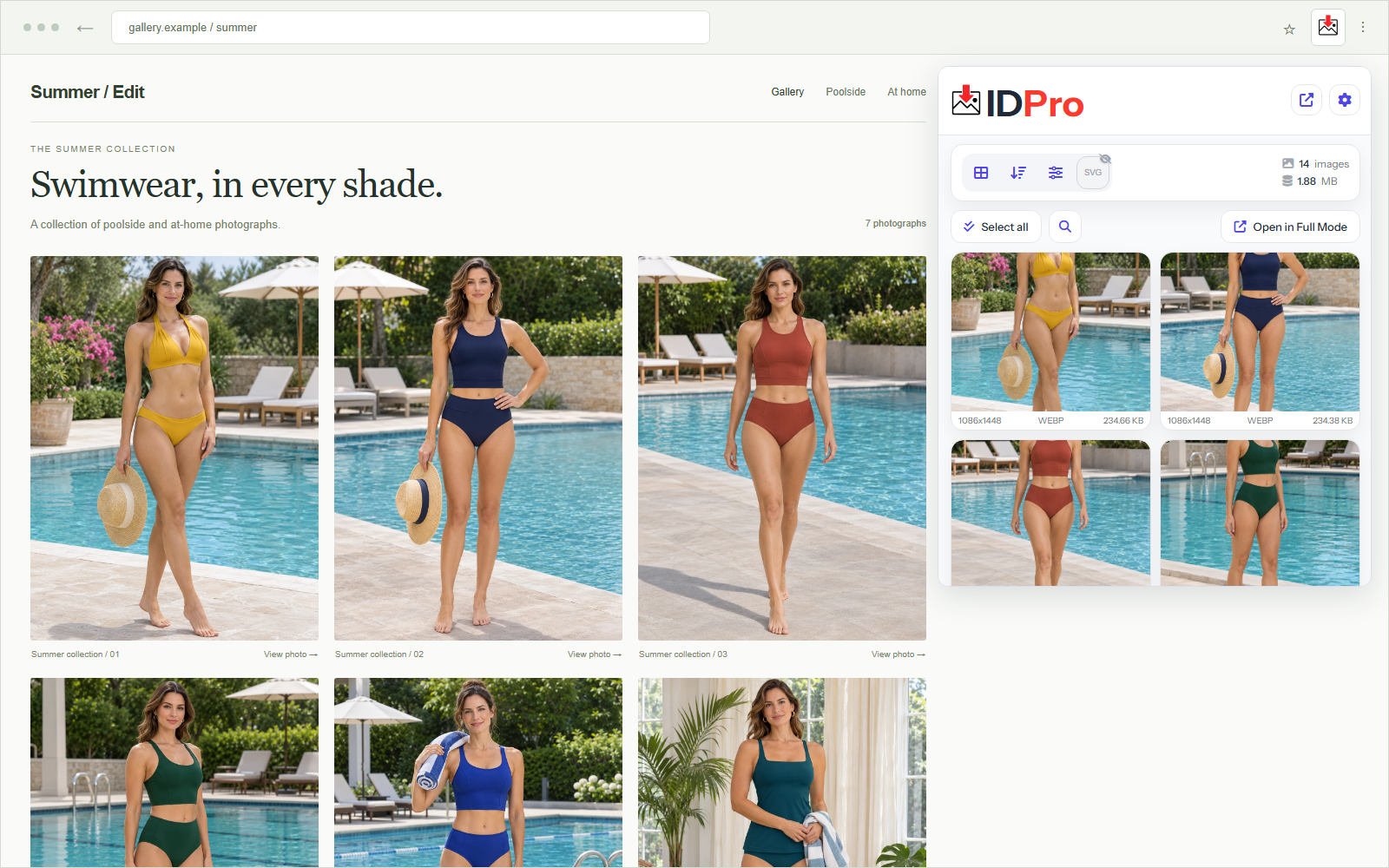
Open a PornPics gallery, let the images load, run Image Downloader Pro, filter out small thumbnails, preview the full-size photos, and bulk download the complete set from PornPics.
Prepare the gallery and define the collection
Open the larger image viewer rather than relying only on the gallery grid. Click through the photographs you need and give each one time to load. A page may expose a small preview, a larger display file, and a differently cropped version at separate addresses.
Use this workflow for images you own or have permission to save. The ability to access a file does not establish a license to republish or redistribute it.
Scan, filter, preview, and download with IDP
Open and prepare the gallery
Visit the PornPics webpage, open the gallery or larger image viewer, and let the pictures load. Scroll through the relevant sections so that Image Downloader Pro can detect the full-size images from PornPics.
Open Image Downloader Pro and choose Search images
Run a fresh scan for the page you intend to collect. The results contain image files and addresses detected from the loaded page; they are not an automatic export of an entire website.
Filter the detected images
Use the available filters to narrow the results. Minimum width and height can remove small icons and previews, but an overly strict setting can also hide useful portraits or panoramas. Start with a representative sample.
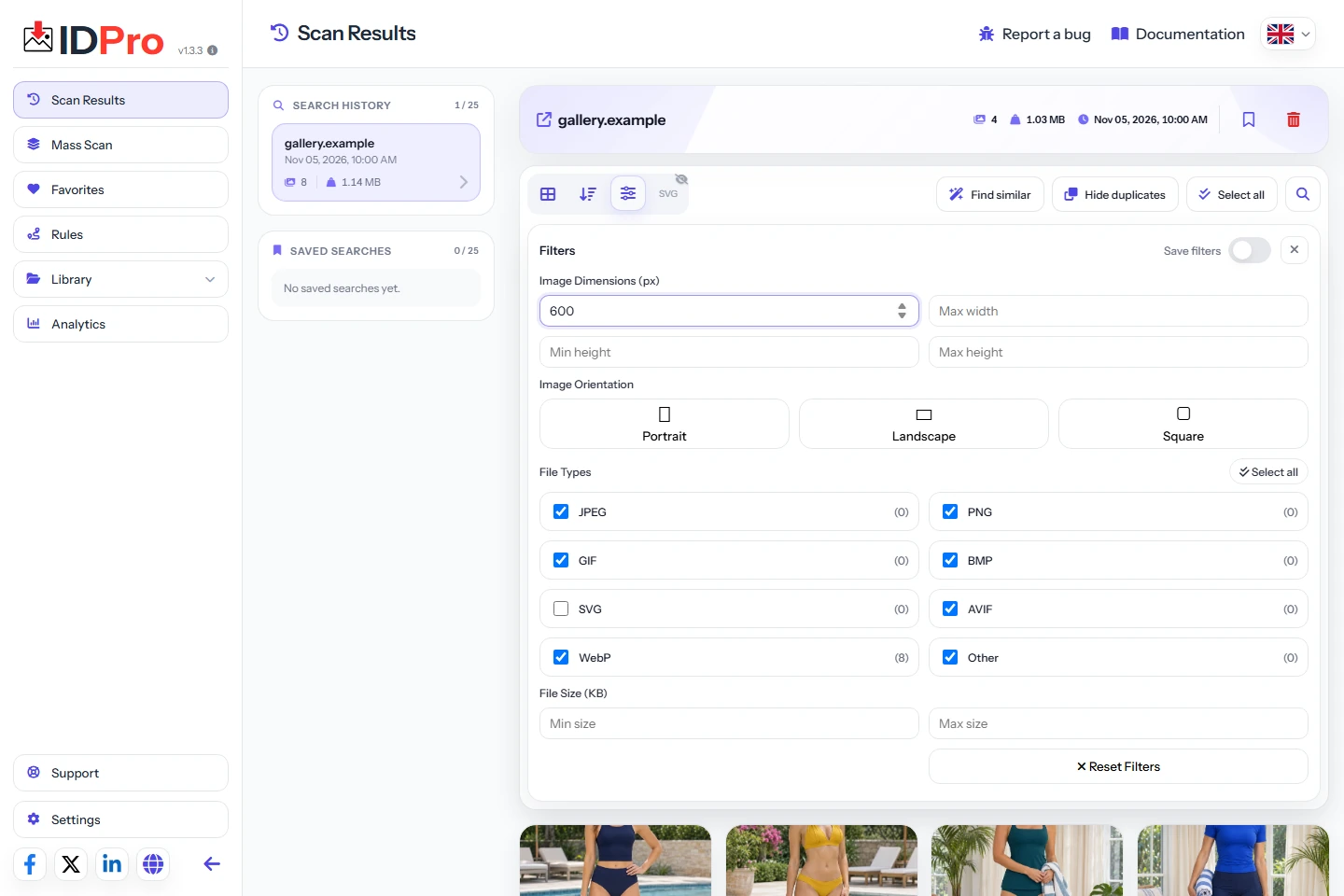
Use image dimensions and file filters to narrow down the results. Preview and select the pictures
Check the subject, crop, pixel dimensions, and any similar-looking variants. Select the images you want. Use Select all only after the filtered result set matches your intended collection.
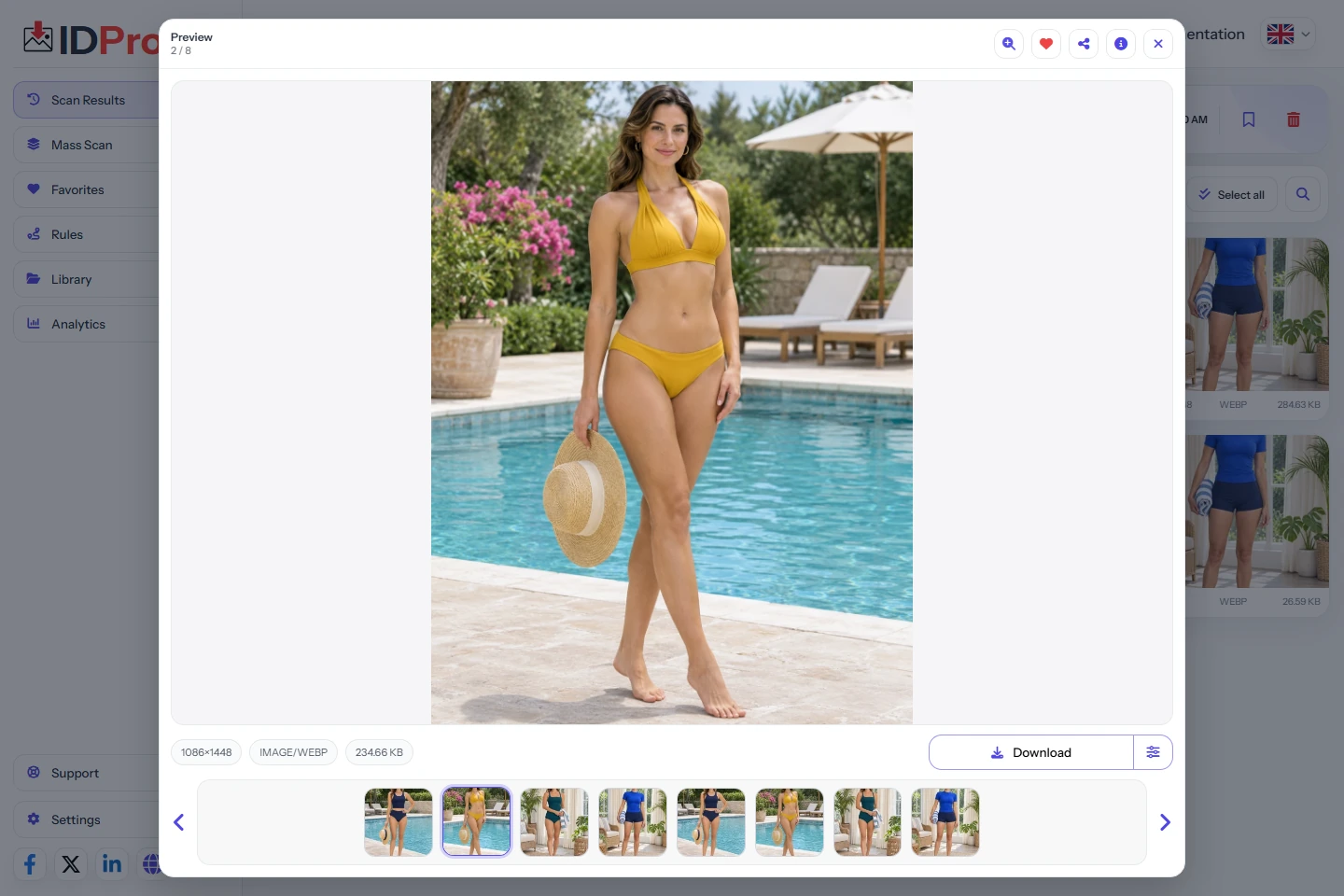
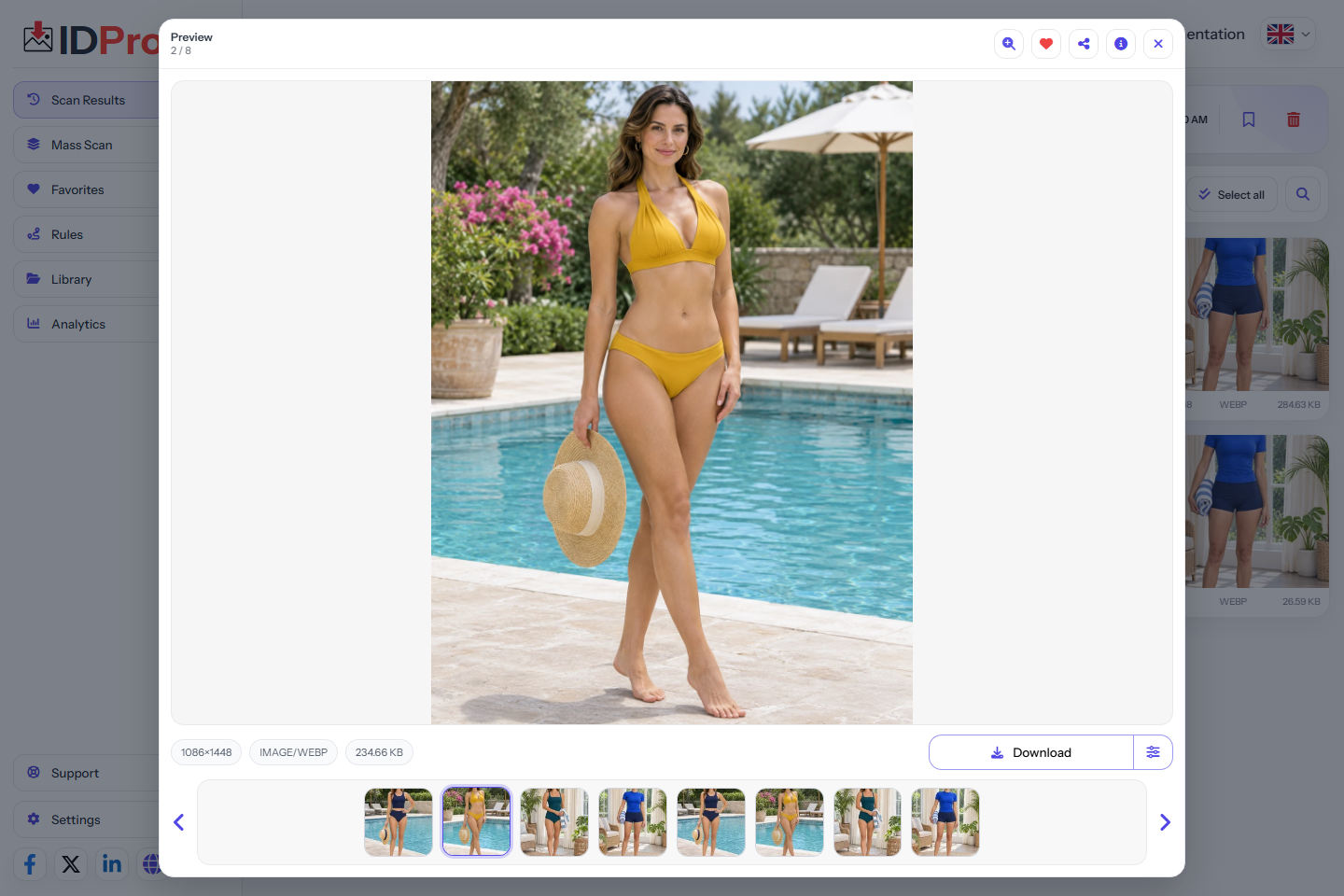
Open the preview to inspect the complete photo before downloading. Download a sample, then the selected batch
Use the selected-image download action and open a saved sample. Confirm its dimensions and frame before downloading a much larger selection. Keep source and permission notes separately if your project needs them.
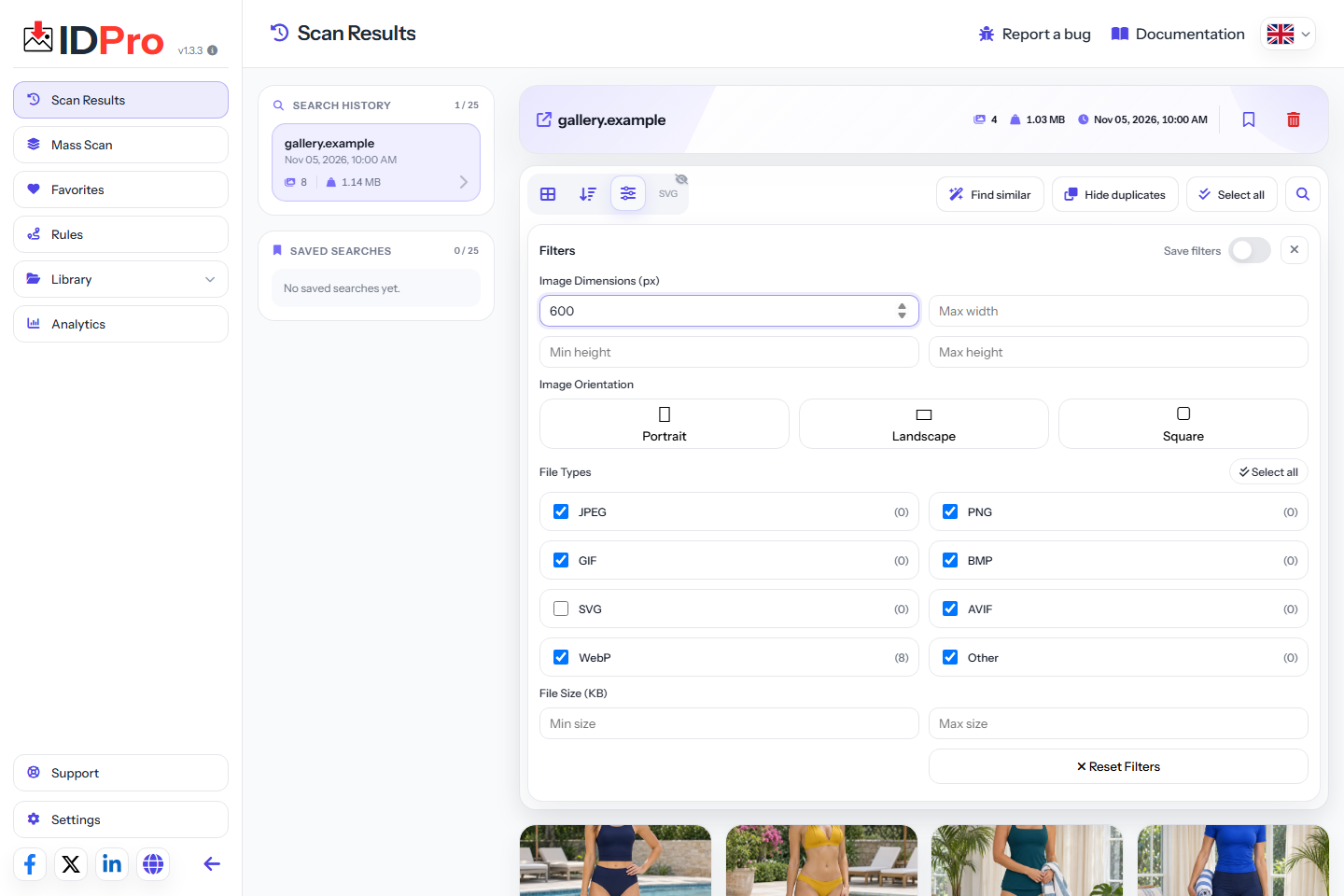
Use Mass Scan to collect images from open tabs
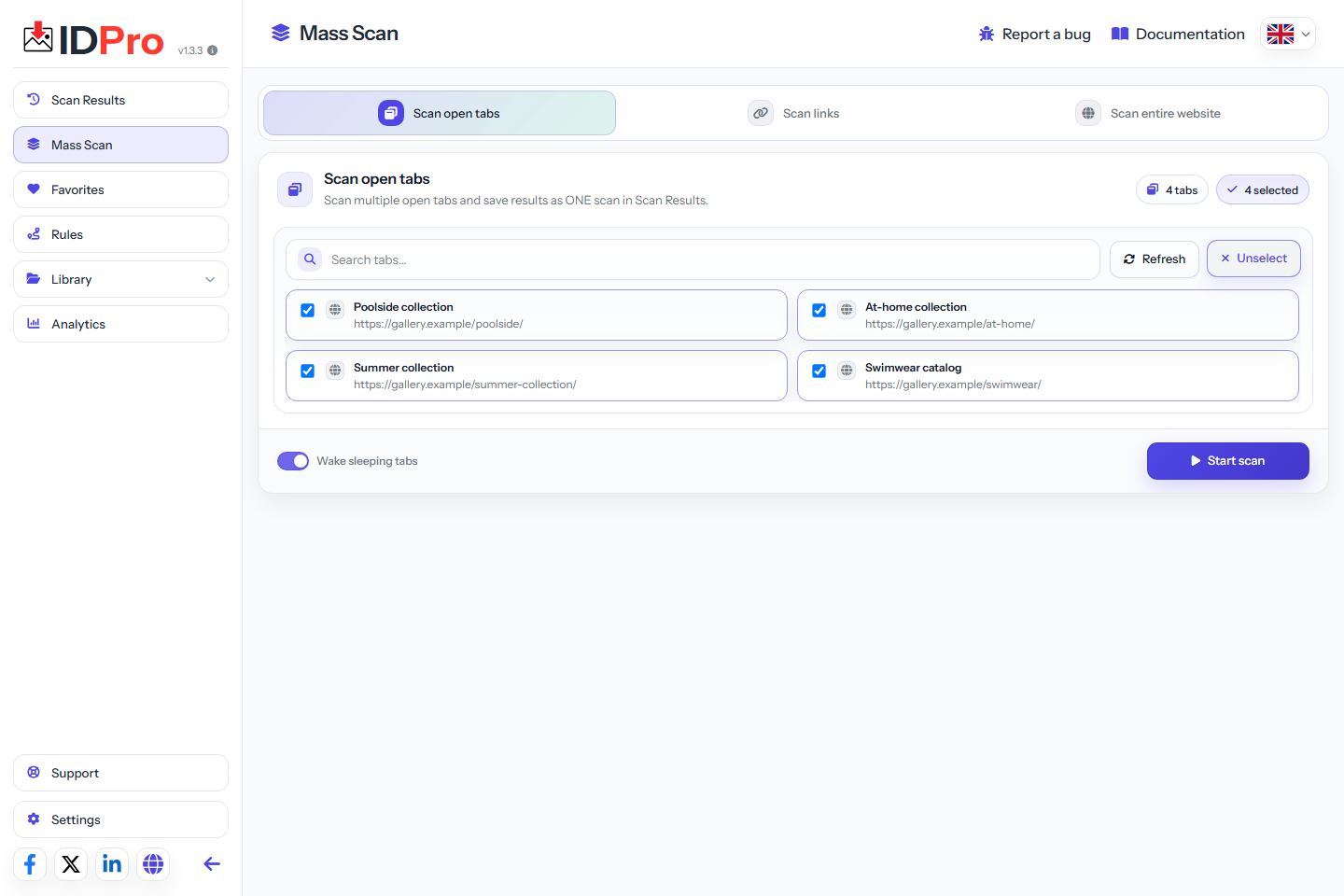
For several gallery pages, open the relevant sources in your browser first. In the IDP dashboard, open Mass Scan and use Scan open tabs. Review the tab titles and addresses, choose the pages you want, and click Start scan.
IDP combines the detected images into one result in Scan Results. Check the scan progress, then filter and preview the combined collection before downloading. A tab that never loaded the relevant gallery views may not supply the photographs you expected when working with PornPics galleries.
Use the same minimum dimensions across related galleries, then inspect exceptions instead of assuming every page exposes the same sizes.
Use Mass Scan to scan a list of gallery links
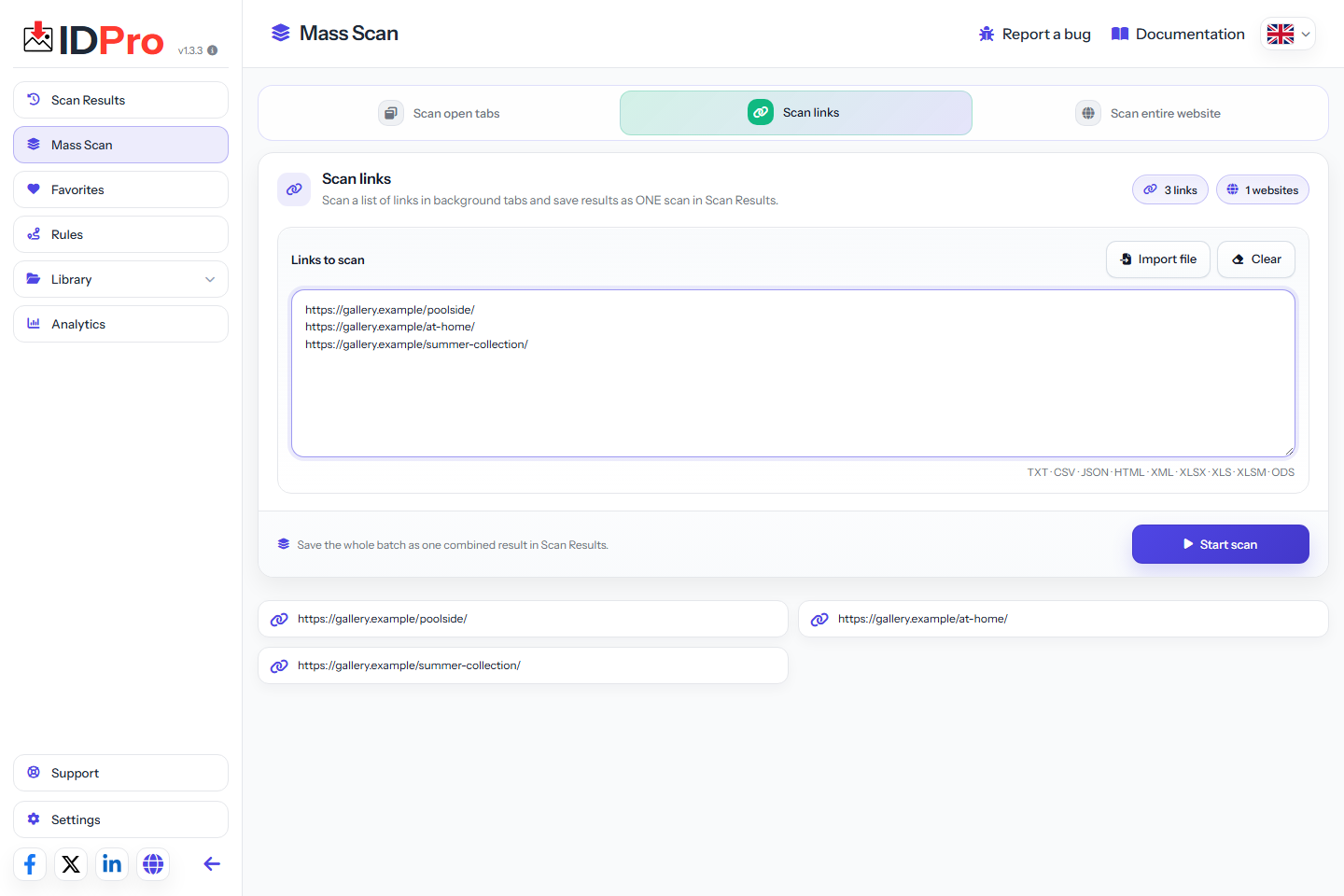
If you have source addresses instead of prepared tabs, use Scan links in Mass Scan. Paste the gallery webpage URLs into Links to scan, one per line, or use Import file to load an existing list. Review the recognized page addresses before choosing Start scan.
The link workflow opens source pages in background tabs and collects their detected images into a combined result. Check that the current gallery, session, and page layout expose the pictures you need. A pasted URL does not force a site to reveal unloaded or inaccessible files.
Choose this mode for a deliberate source list; use open-tab scanning when you have already prepared the exact views. Review the resulting images in either case.
Save the scan so you can review it later
Open the relevant collection in Scan Results and use its bookmark action to save it. Confirm that the result appears in the saved section. When you return, review the images, active filters, and current selection before downloading again.
Keep the scan that contains the useful larger variants so you can revisit your selection without confusing it with a thumbnail-only pass.
A saved scan retains result information and image addresses; it is not a permanent offline archive of the photographs. Some source URLs expire or depend on a browser session. Download the actual files when you need an offline copy, and rescan the PornPics gallery when its addresses or contents have changed.
Three checks that matter for this collection
Compare pixels, not display size
A 1600 × 2400 file has more pixels than a 400 × 600 preview. A large box on the webpage does not tell you which file the browser actually received.
Inspect the whole frame
A square thumbnail may crop a portrait photograph. Preview the larger candidate and check that it includes the edges you need before you select the rest of the gallery.
Keep “largest available” separate from “original”
Websites can resize or recompress uploads. IDP can find versions exposed by the page, but it cannot recreate an unavailable camera original or add missing detail.
Common questions
Does a larger file size always mean higher resolution?
No. Compression, image content, and file format also affect storage size. Compare pixel dimensions and inspect the image itself.
Can IDP turn a thumbnail into an original?
No. It needs a usable larger image address exposed by the page. If none is available, open the source viewer or use the website’s own download option.
Can I scan both open tabs and gallery URLs?
Mass Scan has separate workflows for selected open tabs and source-page links. Choose the one that matches how you have prepared the galleries, then review the combined results.
Does a saved scan keep the image files available forever?
No. A saved result can contain references to files hosted by the original website. Download the actual images if you need an offline copy, and refresh the source scan if an address stops working.
Load the image. Check its dimensions. Save a small sample before downloading the whole batch.
Back to all guides